
The Submission workspace is used to generate, review, and deliver invoice documents to external recipients.
Use it to preview invoice documents, select recipients, choose document templates, and submit invoices once they are ready for distribution.
Submission converts invoice information into a formatted document suitable for delivery to customers and other external recipients.
The generated document is based on:
This allows invoice documents to be reviewed before they leave the organisation.
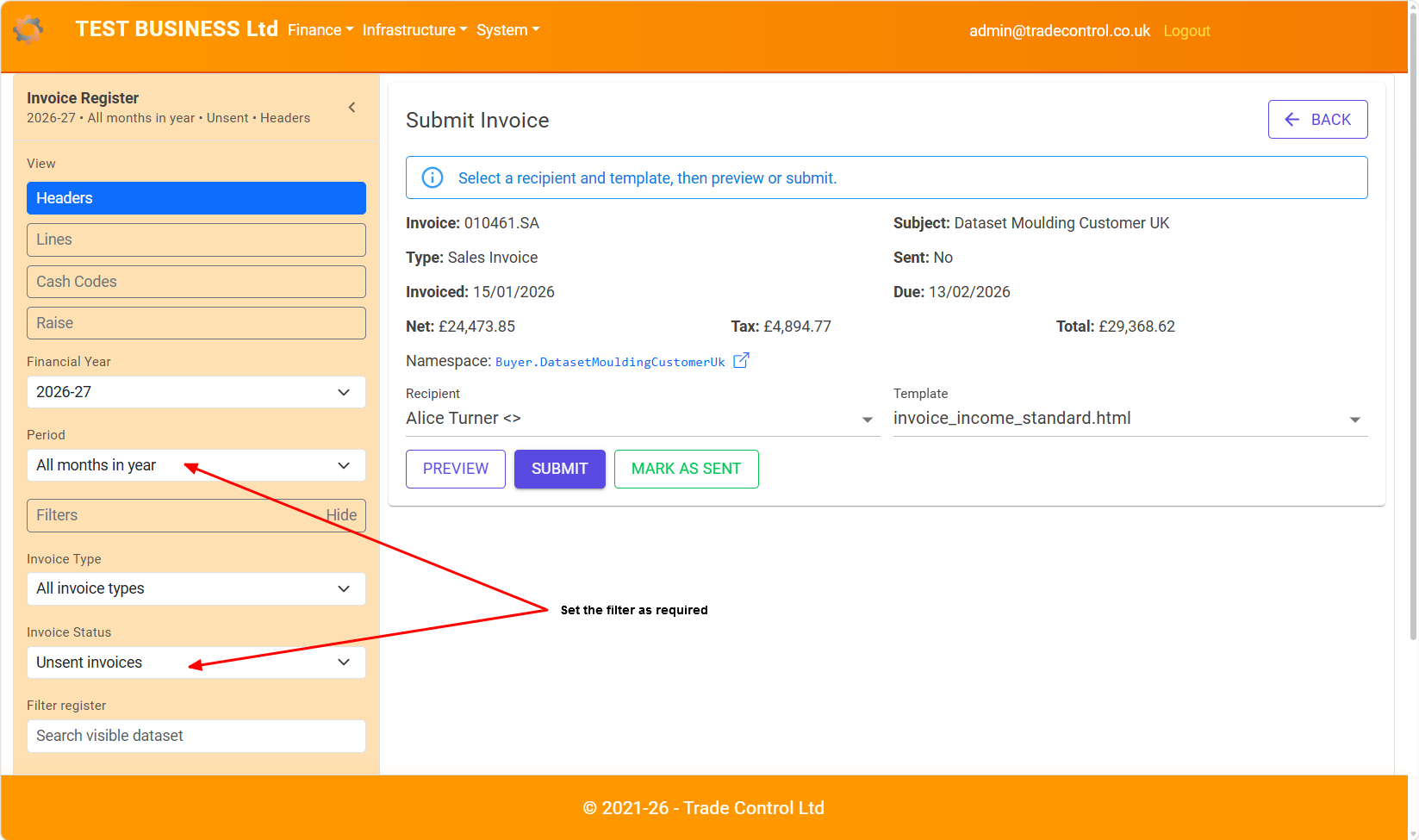
Before submitting an invoice, review the information displayed in the Submission workspace.
This includes:
Confirm that the invoice accurately reflects the business transaction before proceeding.
Invoice documents are delivered to recipients associated with the selected subject.
Recipients are maintained within the subject namespace and can include default and named contact addresses.
Select the appropriate recipient before submitting the invoice.
If no email address is available for the selected subject, the Submission workspace displays a warning message.
Use the Subject link to open the associated namespace in a new browser tab and maintain the available recipient addresses.
Once a valid recipient has been added, return to the Submission workspace and continue the submission process.
Templates control the appearance and structure of generated invoice documents.
Examples may include:
Select the template that best matches the intended document presentation.
Invoice templates can be customised to meet business branding and document requirements.
Use Preview to generate a document before submission.
The preview displays the invoice exactly as it will be generated using the selected template.
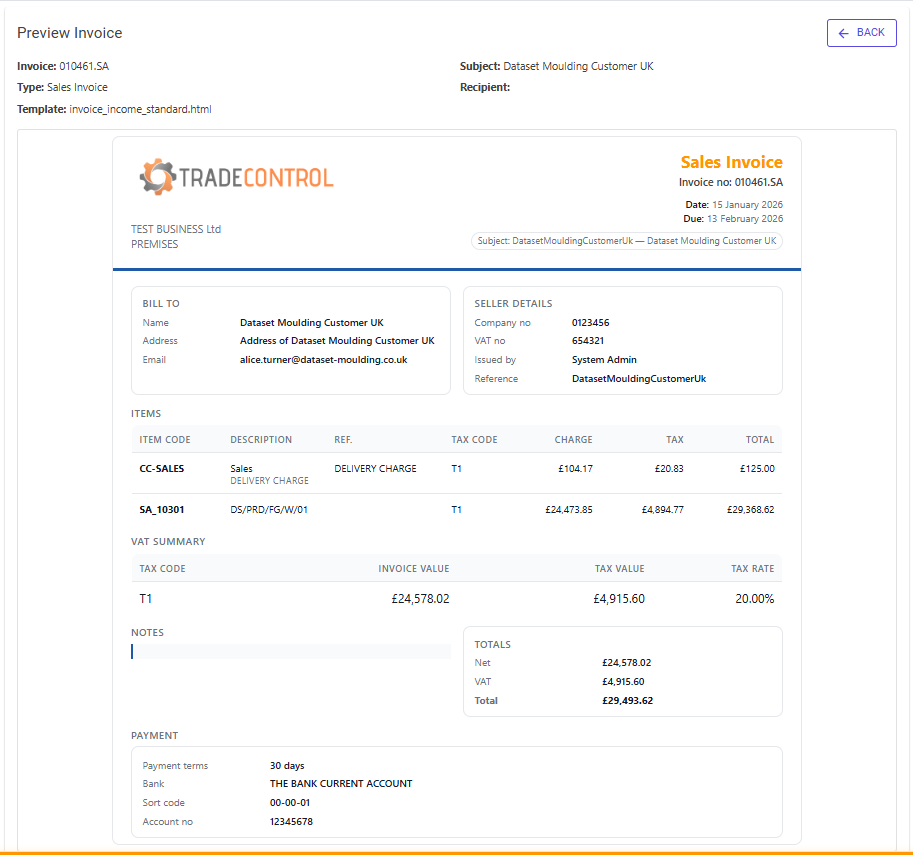
Review the generated document carefully and confirm:
Previewing documents helps identify issues before distribution.
When the invoice has been reviewed and a valid recipient has been selected, use Submit to deliver the document.
Submission records that the invoice has been issued and provides a consistent process for distributing invoice documents.
Only invoices intended for external recipients should be submitted.
The Mark As Sent action is available when an invoice has been delivered through an alternative process outside the Submission workspace.
Examples include:
Marking an invoice as sent updates the operational status of the invoice without generating a new submission.
Invoice Register includes filters that help identify invoices that have not yet been distributed.
Select Unsent Invoices from the Invoice Status filter to display invoices that still require submission.
This provides a simple way to review outstanding invoice deliveries and ensure no invoices are overlooked.
Invoice documents are generated from templates.
Templates separate invoice data from document presentation, allowing businesses to customise document appearance without changing invoice information.
This flexibility makes it possible to maintain consistent branding and presentation standards across all generated invoice documents.
On mobile devices, Submission follows the same workflow while using a single-column layout.
Invoice information, recipients, templates, and document previews remain available through the mobile navigation flow.
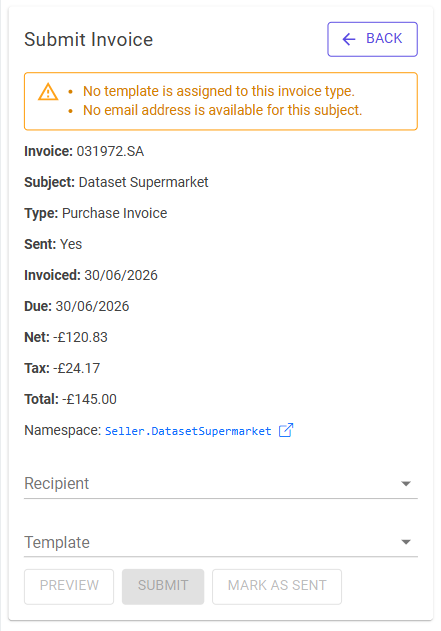
Open the subject namespace and review the configured recipient addresses.
Use Preview to generate the invoice document and review it before submission.
Use Mark As Sent to record the delivery without generating a new submission.
Filter the Invoice Register using Unsent Invoices to display invoices awaiting distribution.