
Tax Configurator is where you map accounting categories and Cash Codes to the statutory component fields used by Trade Control.
The supplied templates create a working mapping by default. You normally need to change it only if you modify the Category Tree, add Cash Codes or build your own classification.
These guides explain the installed defaults, supported field groups and checks to make before changing a mapping:
Tax Configurator lets you:
On desktop, Tax Configurator uses a split layout:
Select a node in the tree to see the details pane update immediately.
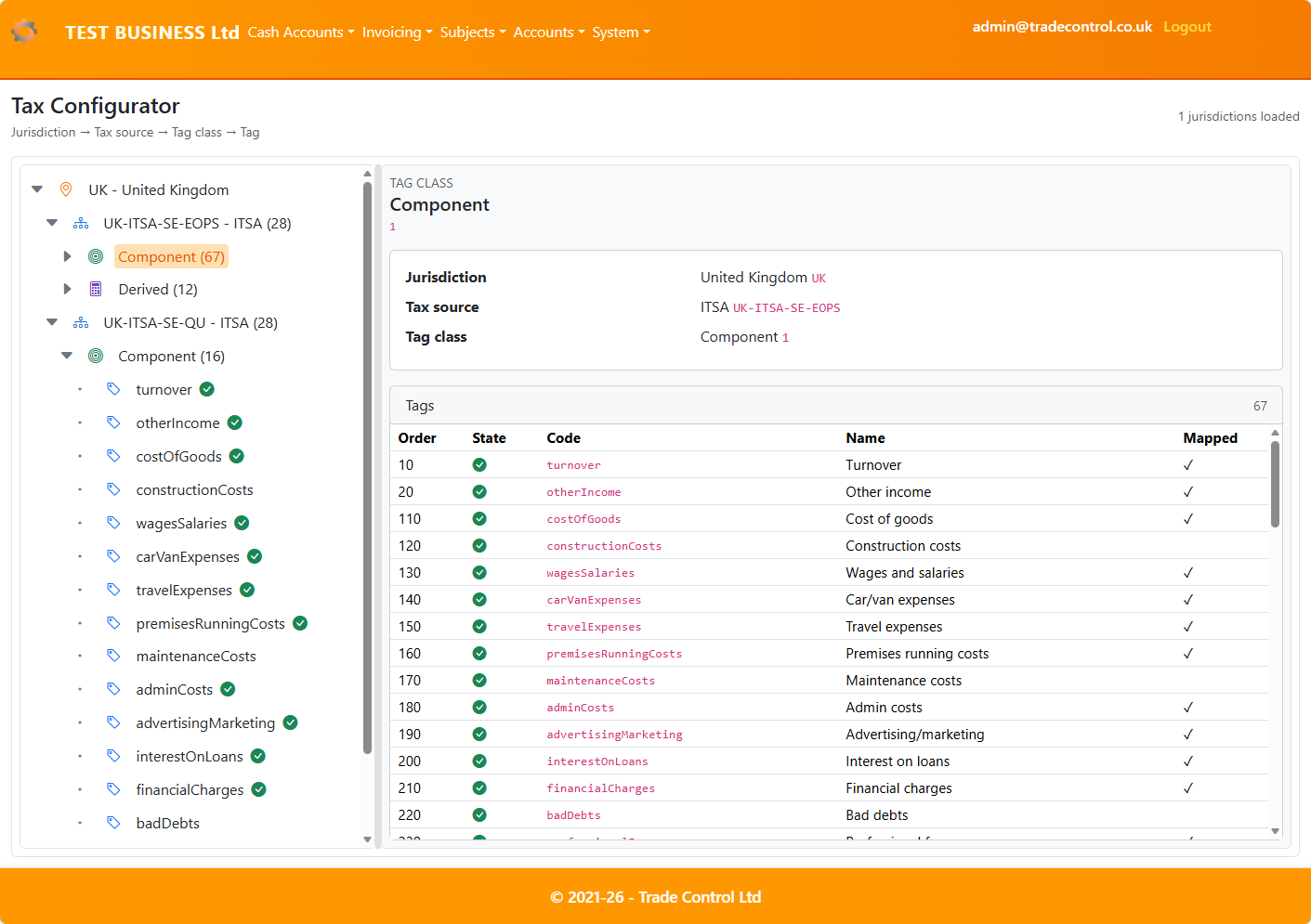
On mobile, the same information is shown in a single-column layout.
A bottom action bar gives you the key actions for the selected node:
Details opens the selected node in full-page modeValidate checks the selected tax source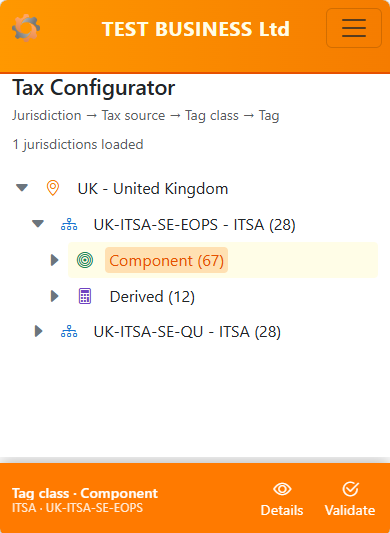
The tree is organised as:
The selected node is always shown in the details pane.
Only component fields can be mapped.
Calculated and contextual fields are read-only and explain that they cannot be mapped.
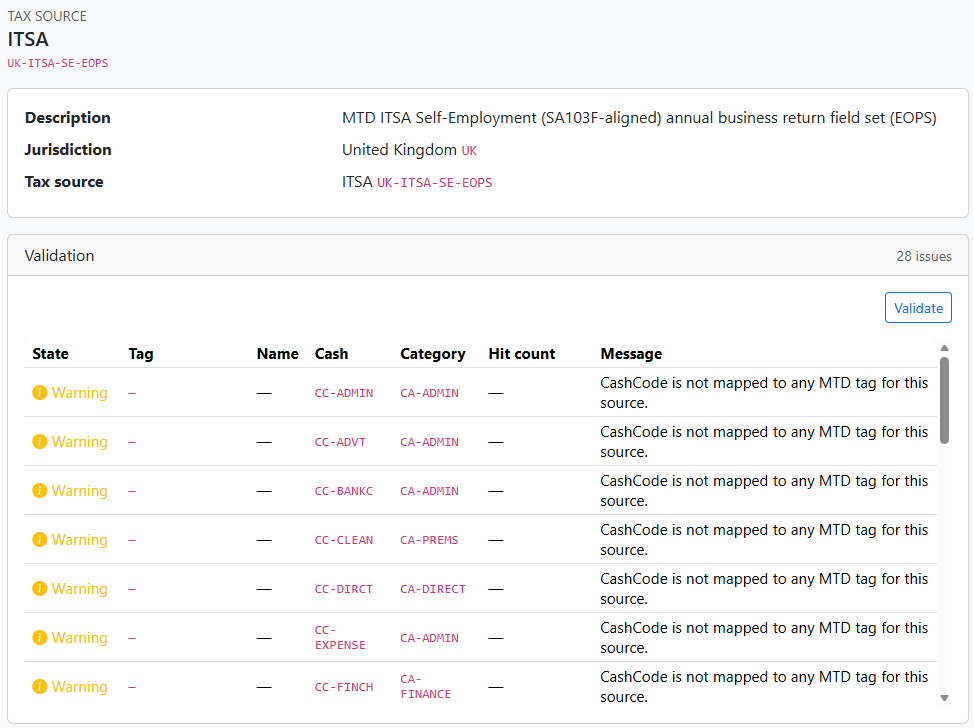
Source nodes can be validated. Validation shows the list of issues and warnings for the selected source.
For a mappable tag, the details pane lets you:
The same selected source and tag context is preserved while you work.
Validation is shown in the source details view.
The validation list is designed to stay readable on smaller screens. On mobile, less important columns are hidden and the message text is shortened so the list remains usable.
If nothing is selected, the details pane prompts you to choose a jurisdiction, source, tag class, or tag.
If a tag is derived or a rollup, the page explains that the tag is computed and cannot be mapped.
If validation finds problems, the page shows them directly under the selected source.