Admin Manager – HTML Templates
HTML Templates is where you manage the HTML resources used by Trade Control to generate invoice output and system emails.
This module is intended for Administrators.
Access
Open:
- System > Admin Manager
- expand Templates
- select either:
On desktop, the selected template module opens in the right-hand pane. On mobile, it opens as a full-screen view.
Invoices
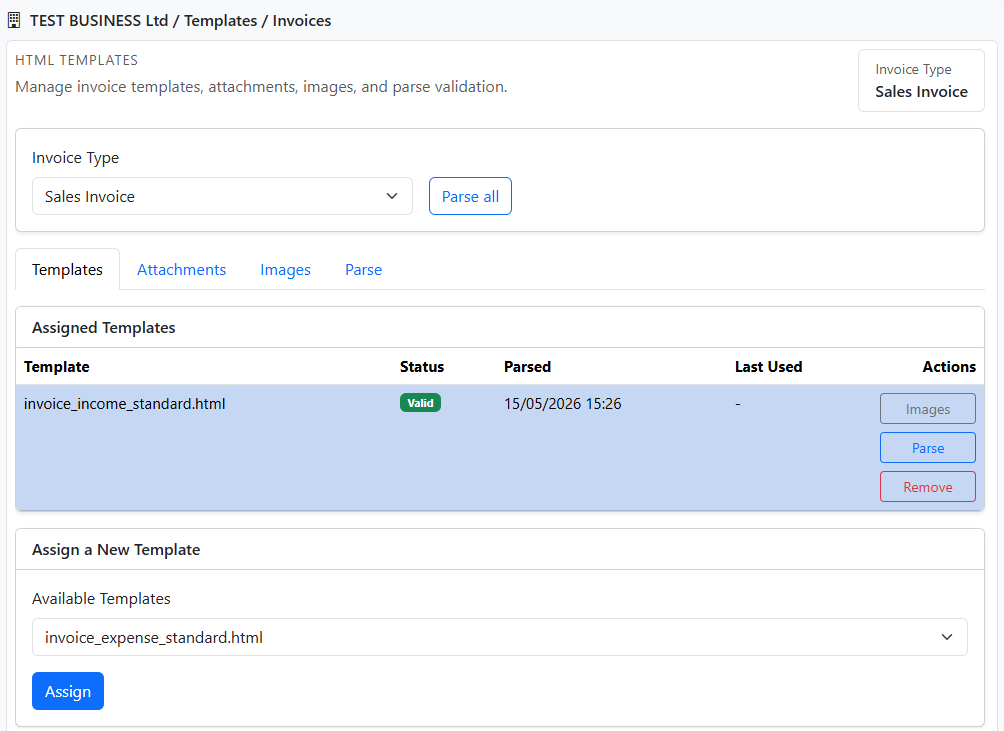
The Invoices area is where you manage invoice-type templates and their related resources.
Use it to:
- select an invoice type
- assign and remove invoice templates
- manage attached documents
- manage template images
- parse templates and review parse results
The Invoices module is organized into four tabs:
- Templates
- Attachments
- Images
- Parse
Selecting an invoice type
You can select an invoice type from the template tree or from the invoice type selector at the top of the panel.
Once selected, the module loads the assignments and options for that invoice type.
Templates tab
Use the Templates tab to:
- review assigned templates
- assign a new template
- open template images
- parse one template
- remove a template
Assign a template
- Select the invoice type
- in Assign a New Template, choose a template file
- select Assign
Expected outcome:
- the template appears in Assigned Templates
Attachments tab
Use the Attachments tab to review and maintain documents assigned to the selected invoice type.
You can:
- view assigned documents
- assign a new document
- remove an existing document
Images tab
Use the Images tab to work with the images assigned to a selected template.
You can:
- choose an assigned template
- review assigned images
- assign a new image
- edit an image tag
- remove an image assignment
If your HTML references an inline image such as cid:[LOGO], the assigned image tag must match the tag used in the template.
Parse tab
Use the Parse tab to validate templates before use.
You can:
- select Parse for a single template
- select Parse all for the selected invoice type
The parse report can highlight:
- invalid field tags
- missing embed directives
- missing embedded templates
- invalid embedded templates
- missing required output tags
- image tags without assignment
- assigned images missing files
- assigned image tags without usage
- unused available fields
System
The System area is where you assign templates used by system-generated emails.
Use it to set templates for:
- support request emails
- user registration emails
- user registration confirmation emails
- user registration administrator notification emails
Notes
- invoice type nodes are selected directly from the template tree
- related work is grouped inside one module instead of being spread across separate pages
- on mobile, Back returns to the previous Manager node