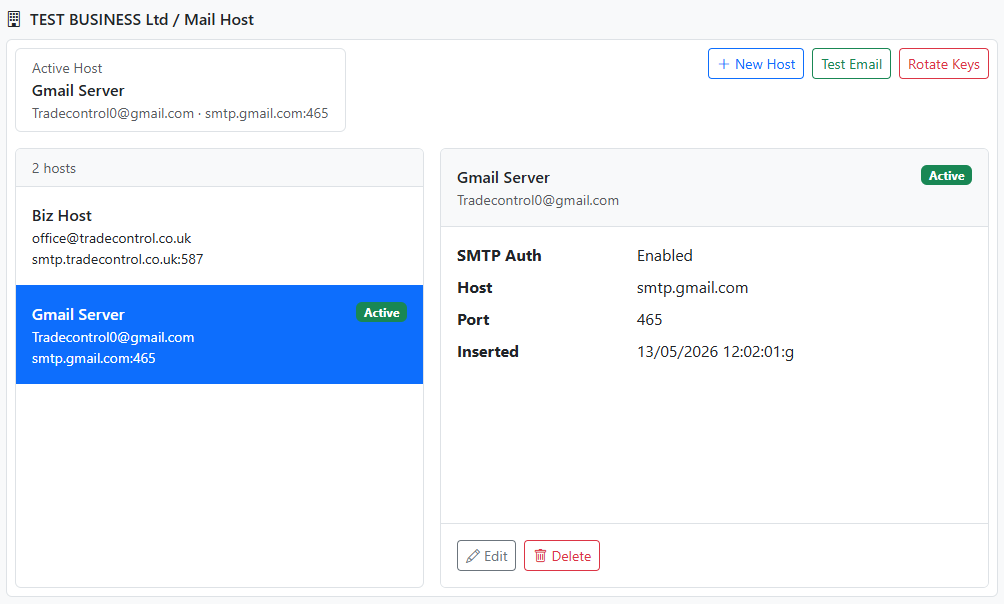
Admin Manager – Mail Host
Mail Host is where you configure SMTP settings used by Trade Control to send operational emails such as invoices, orders, registration emails, and support notifications.
This module is intended for Administrators.
Access
Open:
- System > Admin Manager
- select Mail Host
On desktop, Mail Host opens in the right-hand pane. On mobile, it opens as a full-screen view.
What this module manages
Use Mail Host to:
- create and maintain SMTP host profiles
- select the active SMTP host
- configure SMTP authentication
- rotate encryption keys used for stored mail passwords
- send a test email and review the outcome in Event Viewer
Active host
Only one host is active at a time.
- Select a host from Active Host
- select Set Active
Expected outcome:
- the selected host becomes the active sender
- system-generated emails use that host
Add a new host
- Select New Host
- enter:
- Host Desc.
- Email Address
- Use SMTP Auth
- Password when authentication is enabled
- Host Name
- Port
- select Create
Expected outcome:
- the host is stored and appears in the list
Edit an existing host
- Select the edit action
- update the required values
- select Update
If Use SMTP Auth is cleared, the stored password is cleared.
Delete a host
- Select the delete action
- confirm deletion
Expected outcome:
- the host is removed
- if the deleted host was active, Trade Control selects another host where possible
Test Email
Use Test Email to verify the active host.
- Select Test Email
- Trade Control sends a test message to the signed-in user’s Identity email address
Expected outcome:
- a confirmation message is shown
- the send result is written to Event Viewer
Encryption key rotation
Mail host passwords are stored encrypted.
Use Rotate Keys if you need to replace the encryption key material.
- Select Rotate Keys
- confirm you have a database backup
- select Rotate Keys and Re-encrypt Host Passwords
Expected outcome:
- a new symmetric key and IV are generated
- stored mail passwords are re-encrypted where possible
- results are written to Event Viewer
Gmail notes
If you use Gmail SMTP:
- enable Google 2-Step Verification
- create a Google App Password
- use the App Password as the SMTP password
Recommended settings:
- host:
smtp.gmail.com
- port:
587
- use SMTP auth: enabled