The Statement is the main working view in Cash Manager.
Use it to review cash activity, compare posted and unposted rows, inspect balances, and open related corrections.
The Statement combines the selected cash account, year, period, and filters into one working view.
It shows:
The Statement is the place to review cash position before making changes.
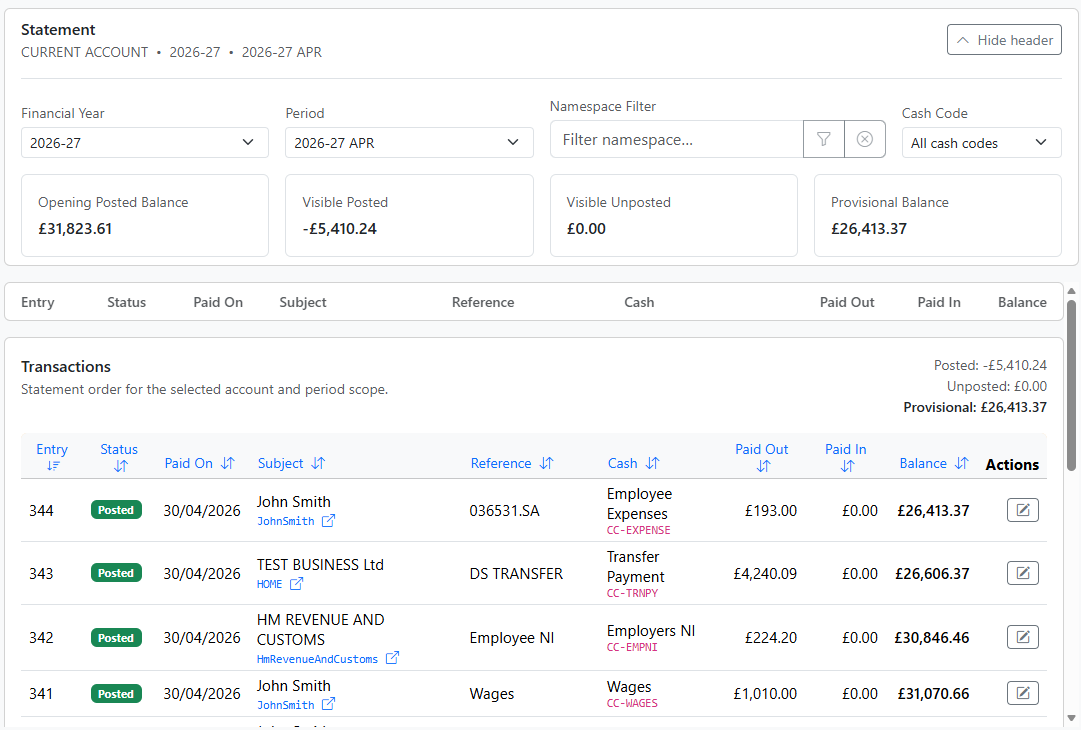
You can narrow the Statement by:
Use the namespace filter when you need to work in a specific DAG context.
Use the cash code filter when you want to focus on a specific cash stream, for example SALES.
The Statement header summarises the visible scope.
It shows:
The provisional balance helps you understand the effect of unposted activity before it is committed.
Each row is shown with a status badge.
In general:
Posted rows are part of committed historyUnposted rows are still in the spoolThis means you can review work before it is posted.
The Statement is namespace-aware.
If the same Subject appears in more than one namespace, the selected namespace context determines which activity is shown.
This is important when the same customer, supplier, or internal business entity is used in more than one branch of the structure.
From the Statement you can open related records directly.
Examples include:
This keeps the Statement as the centre of day-to-day cash review.
Where permissions allow, a payment can be opened directly from the Statement.
The correction workflow supports several modes:
This lets you work from the Statement without leaving Cash Manager.
If a correction touches a closed or archived period, only an Administrator can confirm the overwrite.
Where that happens, the workflow also requests the required rebuild action.
For most users, this is an occasional exception rather than a normal workflow.
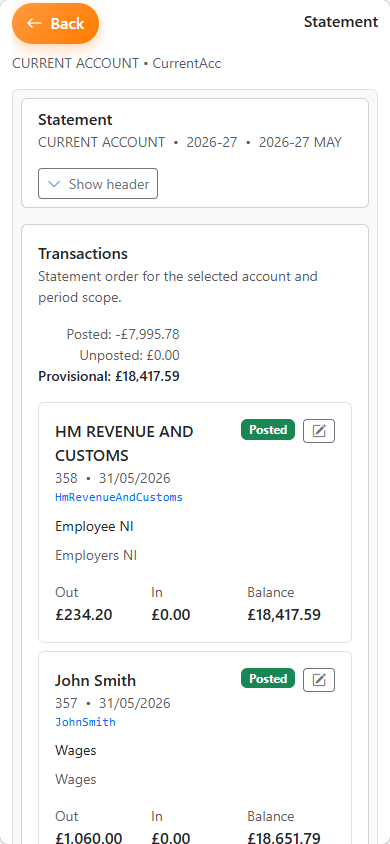
On mobile, the Statement becomes a single-column detail view.
The same information is available, but rows are presented as stacked cards and actions open in the mobile detail flow.
Check:
This usually means unposted rows are visible and the provisional balance includes them.
This usually means: