
Use the Accounts workspace to review your profit and loss, balance sheet and annual equity reconciliation. The figures come from the accounting records already held in Trade Control; this workspace does not maintain a separate set of accounts.
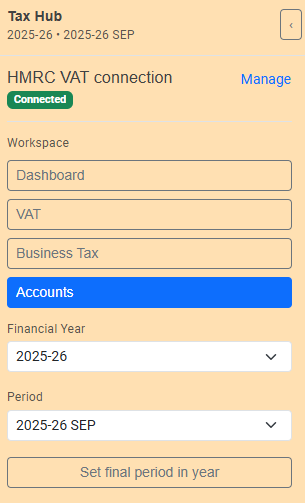
Open Tax Hub, select Accounts, then use the selectors on the left:
The headings above the figures show the periods being compared. Check them before drawing conclusions from a movement or balance.
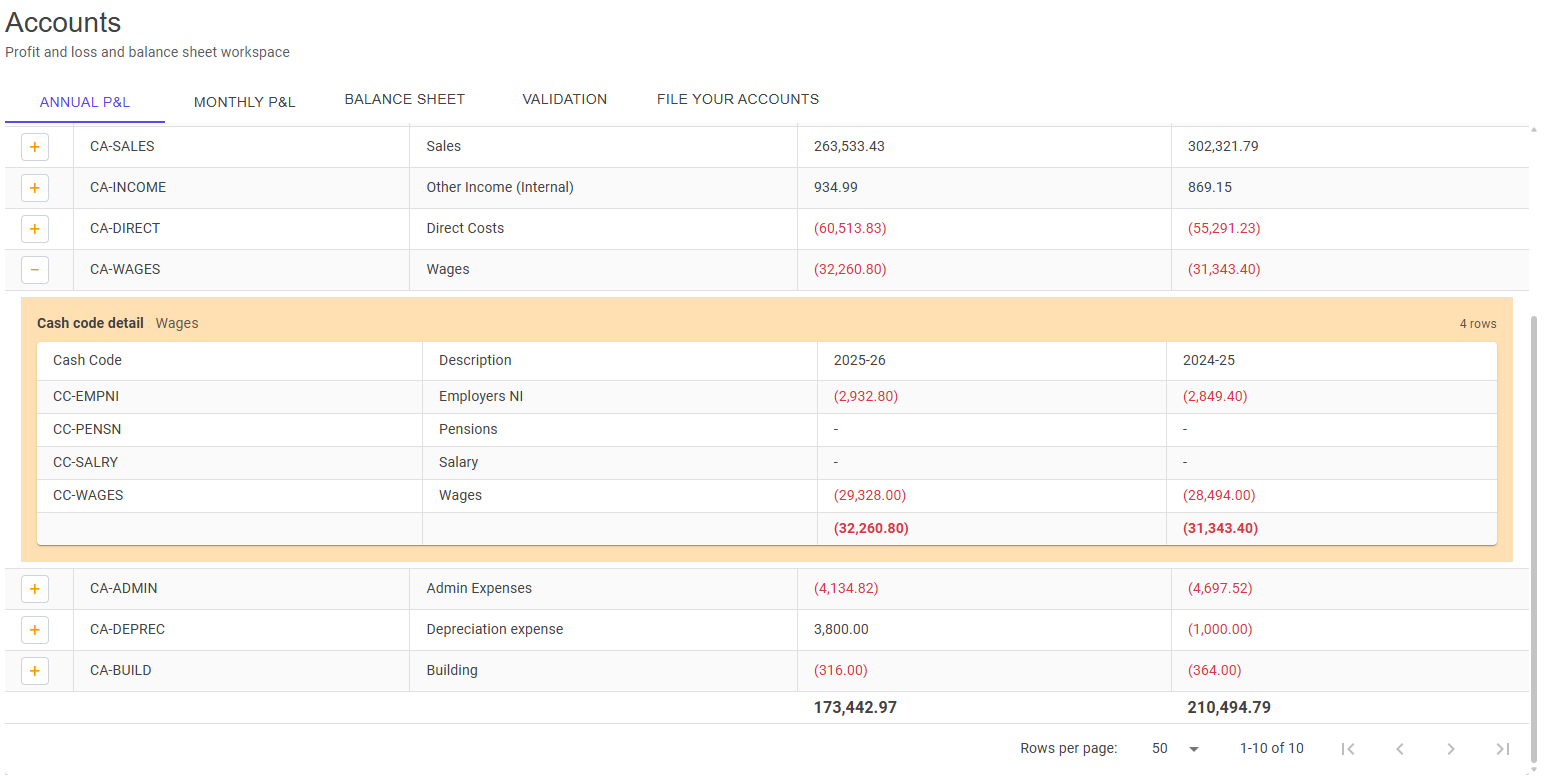
The Annual P&L tab compares the selected financial year with the previous financial year.
The Accounts table groups income and expenditure by reporting category. Use the column filters when you want to concentrate on a particular code or category. The totals at the foot of the table follow the rows currently shown by the filter.
Press the plus button for Cash Code Details, breaking each category down into its underlying Cash Codes. Use this section to identify which types of income or expenditure account for an annual movement before returning to the source accounting activity if an entry needs investigation.
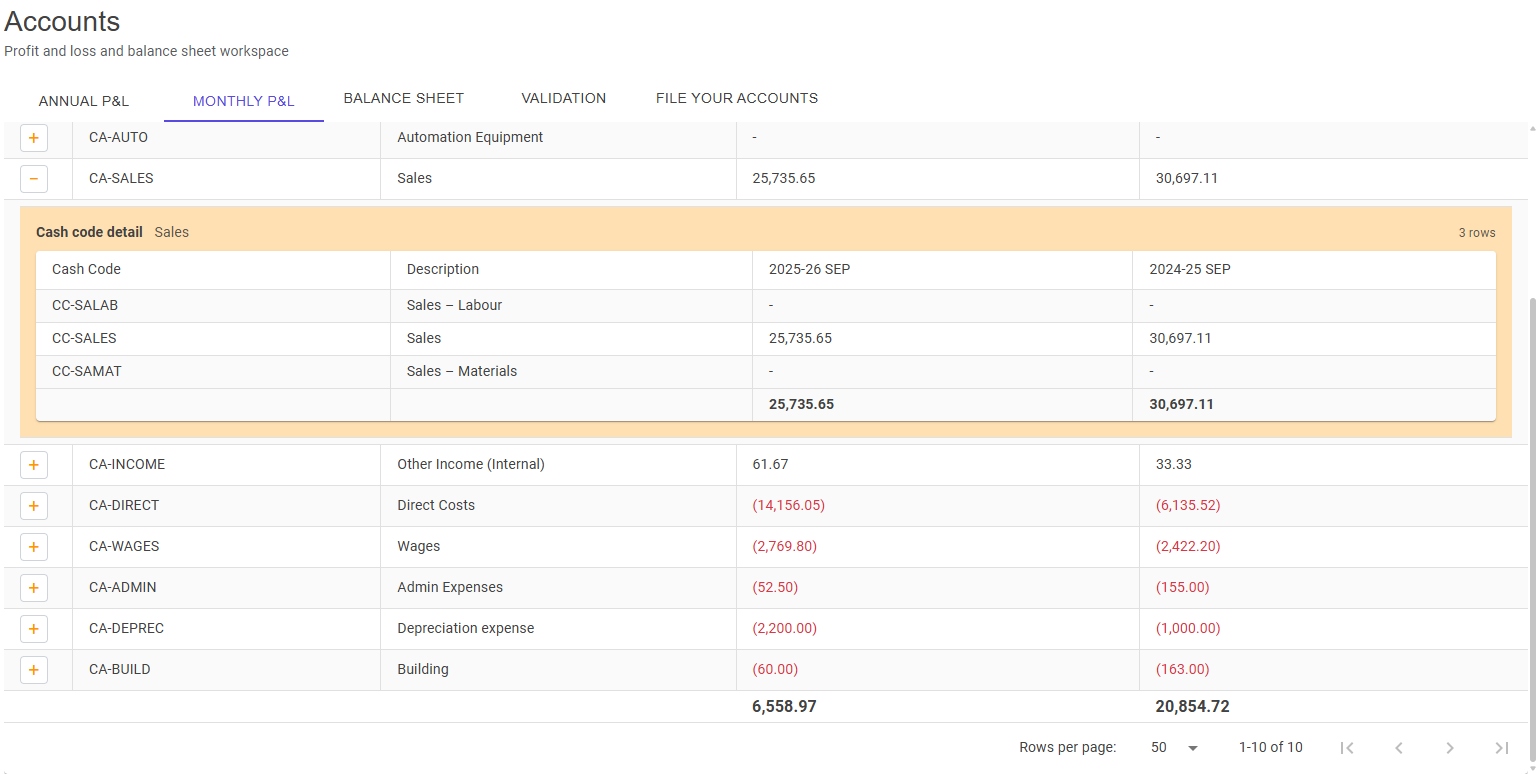
The Monthly P&L tab compares the selected accounting period with the preceding period. Select a month from the Period list, then use this view to investigate short-term changes that may be less obvious in the annual totals.
As on the annual tab, the first table gives the category-level result and Cash Code Details provides the underlying Cash Code breakdown. Filters are independent of the accounting records and do not change any figures.
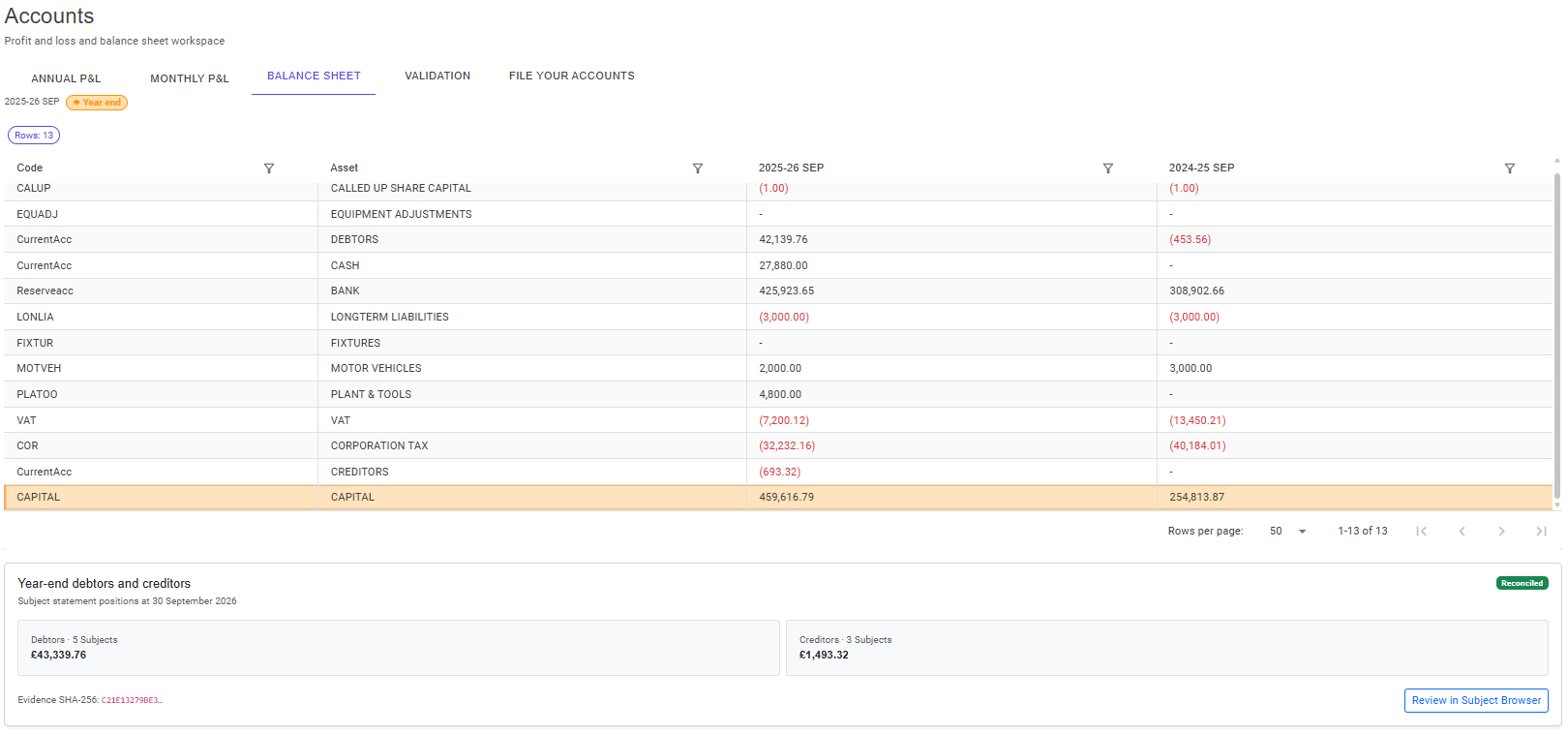
The Balance Sheet tab compares closing balances for the selected period and the preceding period. Capital rows are highlighted. A ◆ Year end marker confirms that the selected period is the final period of the financial year.
At year end, the page also shows the debtor and creditor populations taken from Subject statements, together with their totals and reconciliation state. Choose Review in Subject Browser to inspect the customer or supplier positions behind those totals.
If the accounting year is still open, subsequent source changes can alter the balances. Finish the accounting work and review the final year-end position before starting a statutory filing.
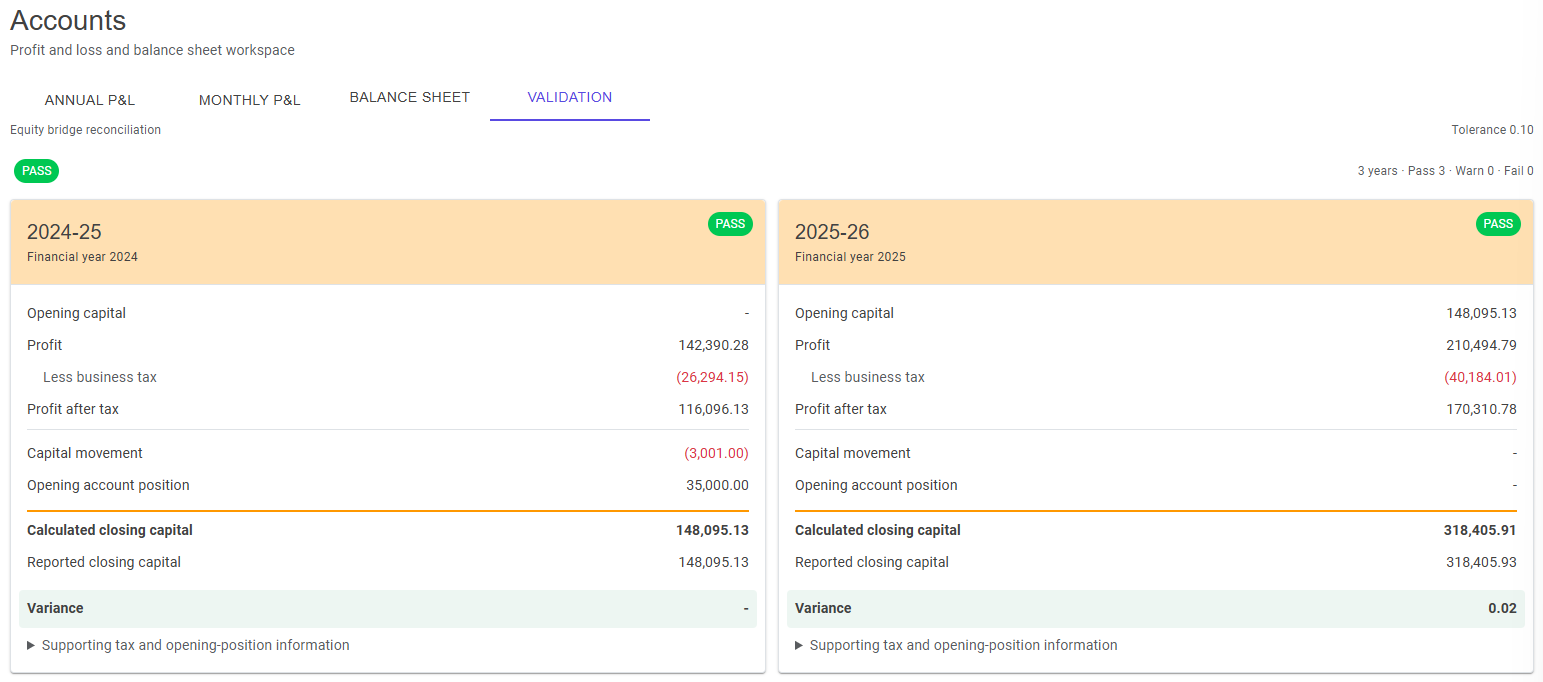
The Validation tab shows the Equity Bridge for each financial year and an overall PASS, WARN or FAIL result. The bridge explains the movement from opening to closing capital using:
Calculated closing capital is compared with Reported closing capital. Their difference is the Variance, assessed against the tolerance displayed at the top of the page.
Where relevant, expand Supporting tax and opening-position information to see opening Subject positions, tax carry and losses carried forward. The Equity Bridge is a reconciliation check; it does not replace a review of individual debtors, creditors, bank accounts or fixed assets.
When the selected year is complete and the year-end accounts have been reviewed, open File Your Accounts. This is the hand-off from accounting review to statutory filing; the complete procedure is covered in Companies House accounts filing.