
A quick orientation for using and understanding the Category Tree. This page links the “what/how” User Guide and the deeper “how it works” Technical Guide.
- User Guide (why/what/how, business-focused): User Guide — Category Tree
- Change control (Draft, Published, Submitted and historical versions): Category Tree — Change Control
- Technical Guide (mechanics, roles, handlers, shortcuts): Technical Guide — Category Tree
Overview
The Category Tree is where you configure your business structure: Totals (roll-ups), Categories (folders), Cash Codes (leaves), and Expressions (derived metrics).
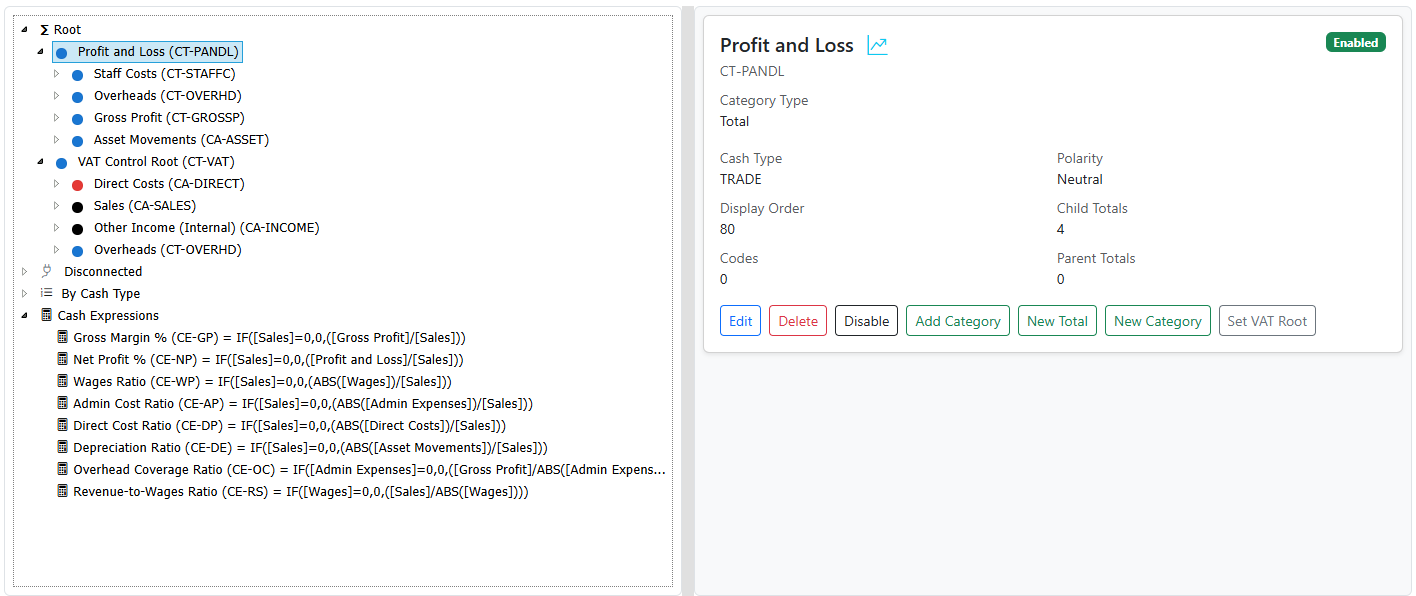
- Desktop: split layout with Tree on the left and Details/Forms on the right.
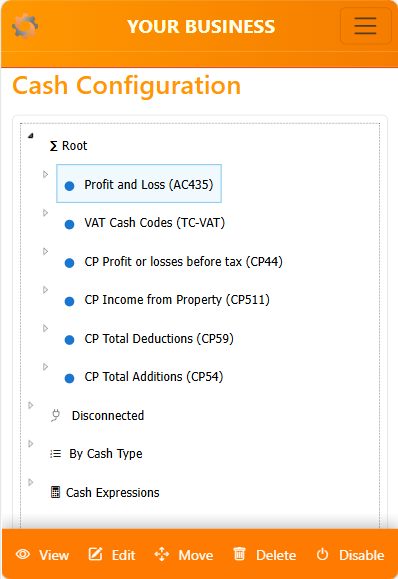
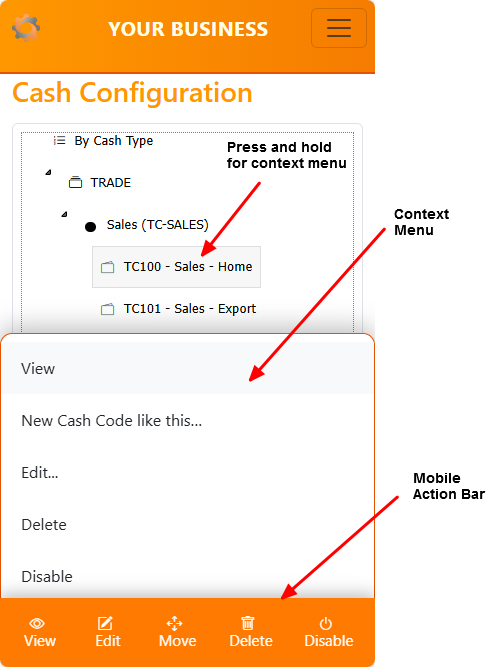
- Mobile: single pane with a context-aware action bar.
Jump to:
Common tasks
-
Evolve a Submitted tree:
- Open Versions, clone a successor Draft, validate and review it, then publish it with an effective date and change note.
- See: Category Tree — Change Control
-
Map Disconnected categories:
- Find orphans under “Disconnected” and attach them under the right Totals.
- See: User Guide — How: Configure step by step
-
Create core Totals:
- Sales, Direct Costs, Indirect Costs under Root. Set Profit/VAT Roots when ready.
- See: User Guide — How: Configure step by step
-
Add Cash Codes:
- Under Cash Code Categories: “New Cash Code” or “New Cash Code like this…” to copy sensible defaults.
- See: User Guide — How: Configure step by step
-
Define Expressions:
- In Expressions root: formulas like
IF([Sales]=0,0,([Gross Profit]/[Sales]))with formats (e.g.,0%). - See: User Guide — What: Categories, Cash Codes, Totals, Expressions
- In Expressions root: formulas like
Page anatomy
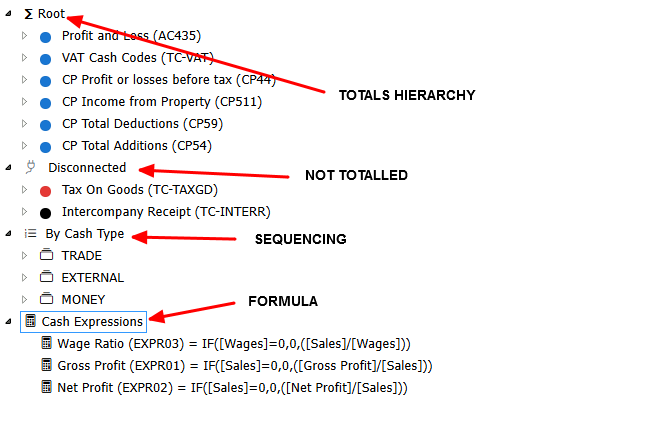
- Tree (left):
- Nodes:
- Root (
__ROOT__): your main hierarchy - Disconnected (
__DISCONNECTED__): unmapped categories - Types (synthetic
type:<code>): per Cash Type browsing - Expressions (
__EXPRESSIONS__): derived metrics
- Root (
- Screenshot:
- Nodes:
-
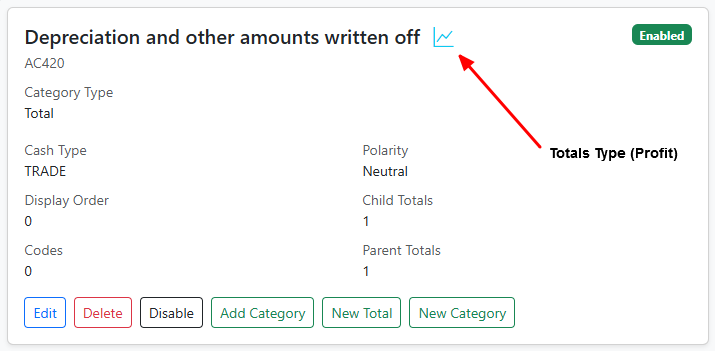
- Details pane (right, desktop):
- Shows context actions and edit/view forms.
- Embedded mode (
embed=1) avoids full-page reloads and preserves selection. - Screenshot:
-
- Mobile action bar:
- Context-aware buttons (View always; Edit/Delete/Toggle/Move if admin and applicable).
Navigation basics
- Select and view:
- Click/tap a node to load details. Desktop loads in the right pane; mobile navigates to a full page.
- Expand/collapse:
- Click folders or use keyboard (desktop): Left to collapse, Right to expand.
- Context menu:
- Desktop: right-click a node. Mobile: long press (500 ms).
- Quick deep links:
- URLs support
?select=<key>&expand=<parentKey>for post-create navigation and bookmarks. - Example:
...?select=code:ABC123&expand=Sales
- URLs support
For keyboard and drag/drop rules (admin): see Technical Guide — Reorder mechanics.
Tips
- Start at Disconnected to tidy unmapped categories.
- Keep names short and consistent (Sales/Direct/Indirect).
- Prefer Disable over Delete while iterating.
- Use “New Cash Code like this…” to speed consistent setup.
- Add 2–3 Expressions (e.g., Gross Profit %) to make reports immediately useful.
Where to learn more
- Business-first overview and step-by-step configuration:
- Controlled evolution and historical reconstruction:
- Detailed mechanics (roles, handlers, antiforgery, shortcuts, JSON responses):