Admin Manager – File Transfer
The File Transfer module provides a simple way to manage server-side files that are also registered in the Trade Control database. It supports:
- Viewing files already registered in the database
- Synchronizing the database with the file system (Sync)
- Uploading new files (Upload)
- Downloading files
- Viewing file properties (Details)
- Deleting files
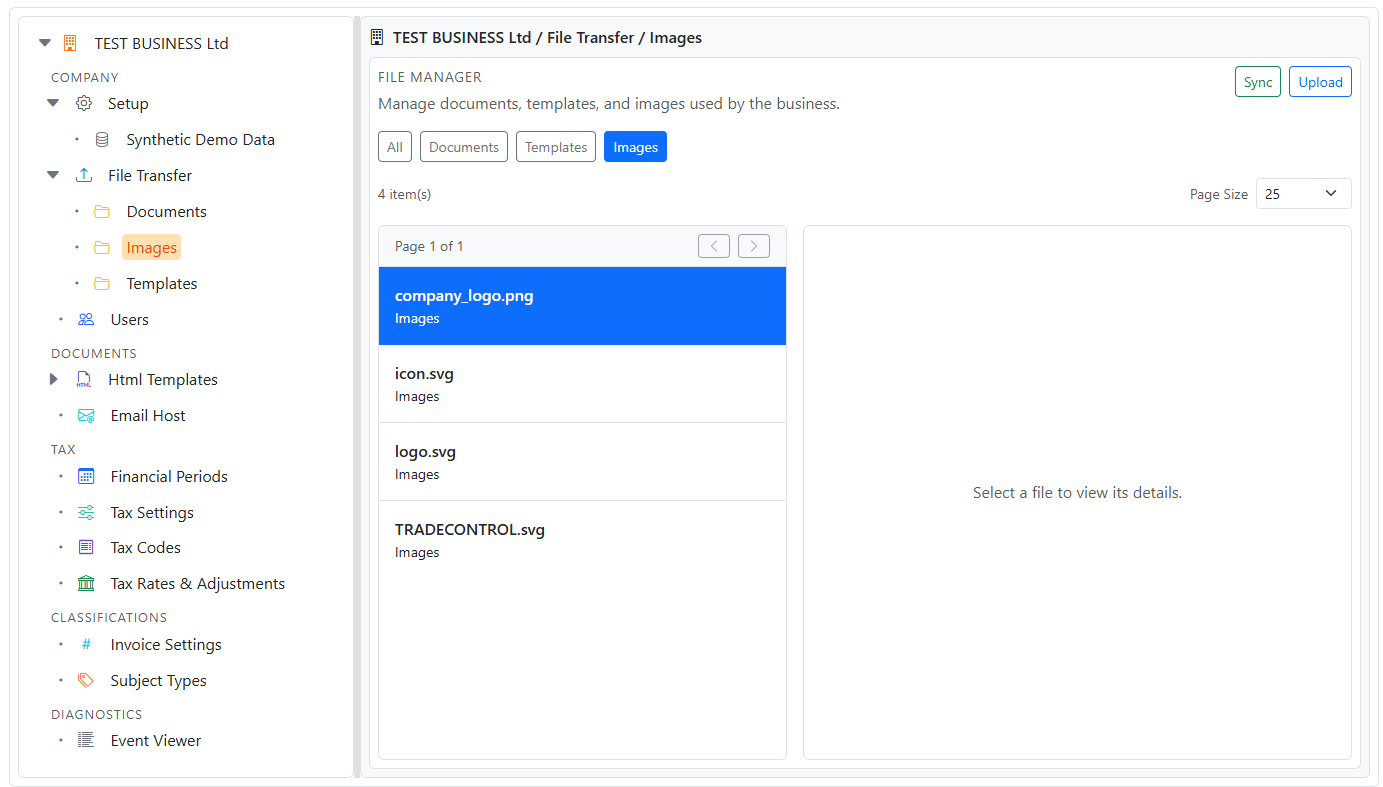
This module is accessed from the Admin Manager tree.
Accessing File Transfer
- Navigate to Admin → Manager (Configuration Manager).
- In the tree, expand File Transfer.
- Select one of the content types:
- Images
- Documents
- Templates
On desktop, the File Transfer list opens in the right-hand pane. On mobile, it opens as a full page.
Viewing the file list (Index)
The Index page shows:
- The current content type selection
- Total item count
- Paging controls (Prev / Next)
- Actions per-file
Page Size
Use Page Size to control how many items are shown per page.
Synchronizing (Sync)
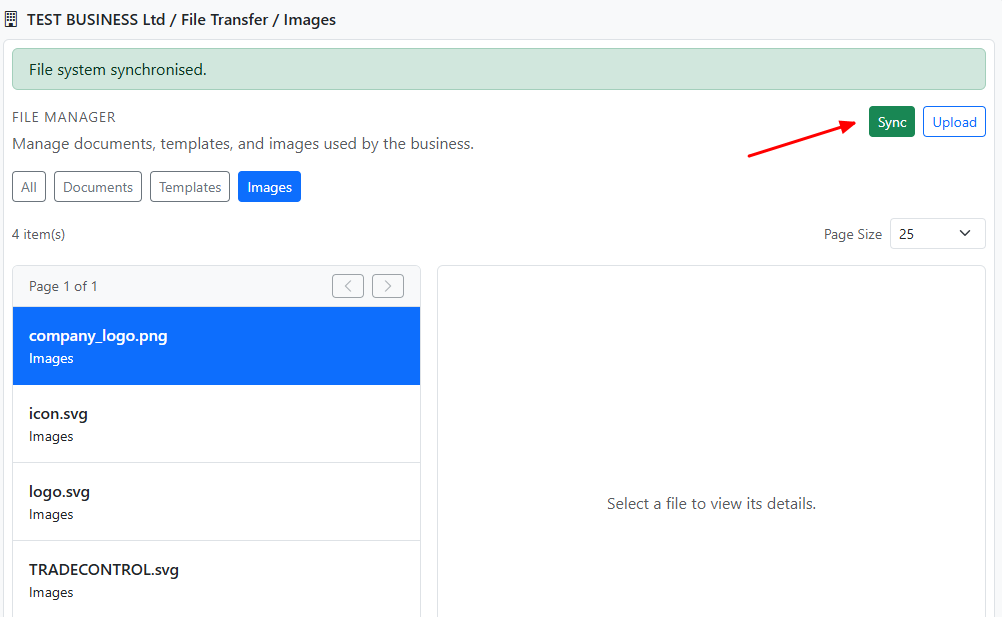
Sync updates the database to match the current contents of the file system.
Where Sync is available
Sync can be executed from:
- The File Transfer Index page (Sync button)
- The Admin Manager tree context menu (Sync)
After Sync completes, the file list refreshes and shows the updated results.
Uploading files
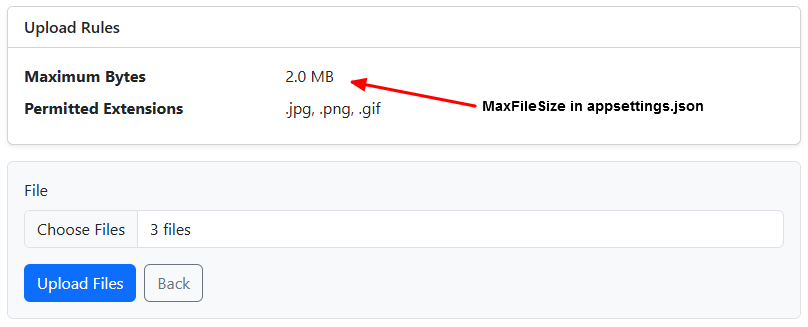
Uploads are available when a specific content type is selected (Images, Documents, or Templates).
- Select a content type (do not use All).
- Click Upload.
- Choose one or more files and submit.
File actions
Each file row provides:
Details
Use Details to show file properties read directly from the file system (for example: size and last modified time).
Download
Downloads the selected file to the client.
Delete
Deletes the file from disk and removes its registration from the database. A confirmation screen is shown prior to deletion.
Navigation and return behavior
When the File Transfer module is opened from the Admin Manager tree:
- Using Back returns you to the Admin Manager and re-selects the corresponding File Transfer / Content Type node.
- Paging information (page size and page number) is preserved where applicable.
Mobile notes
- The tree supports a mobile context menu (long-press) for node actions such as Sync/Upload.
- The File Transfer list is designed to work in a narrow layout; paging and actions remain available.